Need help using the Adjustable toolbar? You’re in the right place. This guide explains how to use each feature and customise the toolbar to suit your needs.
Activating the toolbar
The Adjustable toolbar can be activated using the Opener icon. Locate the icon on the screen and click it to activate the toolbar. Once open, you can interact with the controls to customise the website using accessibility settings that work best for you.
Toolbar or widget
Do you prefer a toolbar fixed to the edge of the screen, or a widget that appears over the page content? With Adjustable, you can choose whichever option works best for you.
Open the Settings menu to switch between toolbar and widget views. When toolbar mode is enabled, you can also move the toolbar to the screen edge that feels most comfortable.
Dark mode, light mode, or colour mode?
Flexibility is at the heart of Adjustable. You can customise the toolbar’s appearance by choosing between light mode, dark mode, or full colour mode.
This option is available in the Settings menu and allows you to adjust the toolbar’s visual style to suit your preferences and improve comfort.
Accessibility profiles
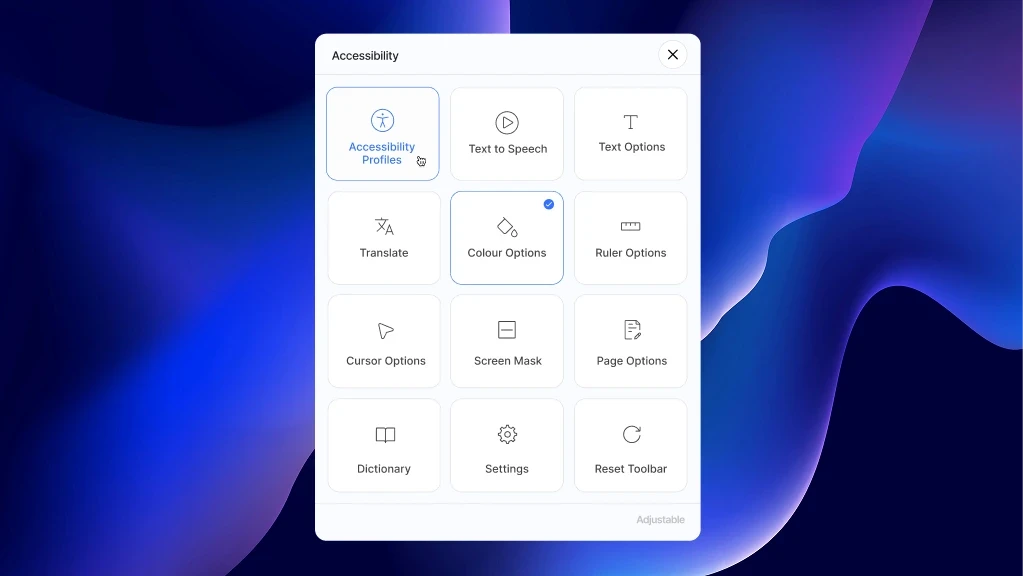
Within the Accessibility Profiles menu, the following options are available:
ADHD – Preset settings designed to support users with ADHD
Cognitive & Learning - Presets for users with cognitive and learning impairments
Dyslexia – Settings tailored to support users with dyslexia
Visually impaired – Presets to assist users with visual impairments
Seizure & Epileptic – Settings designed to reduce visual triggers for users with epilepsy or seizure conditions


Text to speech
The text-to-speech feature converts written content into spoken audio, helping users with visual impairments, reading difficulties, or anyone who prefers to listen rather than read.
This feature is accessed via the Text to Speech button. From this menu, you can:
Enable or disable auto-play
Choose whether text is read on selection or hover
Adjust the reading speed (slow, medium, or fast)
Text options
The Text Options menu includes settings to improve readability and legibility:
Text size – Increase text size for easier reading
Line height – Increase spacing between lines of text
Text spacing – Adjust spacing between characters
Font style – Choose between Serif, Sans-Serif, or Mono fonts
Focus text – Bold the first part of each word to assist readability
Dyslexia font – A specialist font designed to support users with dyslexia
Language translations
If you would like the toolbar to display in a different language, use the Translate button. A list of available languages will appear for you to choose from.
Some websites may also allow page content to be translated. This depends on the website owner’s settings and may not be available on all sites. Please note that translations may not always be 100% accurate.
If a voice icon appears next to a language, text-to-speech is available for that translation.
Colour options
Within the Colour Options menu, you can choose from:
Contrast – Standard view, light mode, dark mode, or high-contrast mode
Greyscale – Remove all colour from the website
Saturation – Adjust colour intensity or restore default colours
These settings affect how the website content is displayed.

Ruler options
The Ruler Options feature activates a reading ruler that helps you focus on one line of text at a time. Surrounding content is masked to reduce distractions.
You can customise the ruler’s colour and opacity (transparency) to suit your preferences.
Cursor options
The Cursor Options menu allows you to change the appearance of your mouse cursor to make it more visible. You can adjust:
Cursor size
Cursor colour
These options help improve visibility while navigating the website.

Screen mask options
The Screen Mask follows your cursor to reduce distractions and help you focus on one section of content at a time.
You can adjust:
Mask opacity
Mask colour (standard, black, or white)
Mask size (visible reading area)
Page options
The Page Options menu includes:
Page scaling – Zoom the entire website for a clearer view
Reading mode – Focus on clean, distraction-free content
Hide images – Remove images to focus on text
Pause animations – Stop animations that may cause distraction
Highlight links – Highlight links with a yellow outline for easy identification
Dictionary
If you’re unsure of the meaning of a word, the Dictionary feature can help. Select the Dictionary button, then click a word on the page or type it into the search box.
If a definition is available, it will be displayed for you. Dictionary lookups do not collect or store searched words.
Toolbar settings
The Toolbar Settings menu allows you to customise the toolbar’s appearance and behaviour. From here, you can:
Switch between toolbar and widget mode
Move the toolbar to any edge of the screen
Select light, dark, or colour mode
Access links to the Accessibility Statement and User Guide
Reset toolbar settings
The Reset Toolbar button restores the toolbar to its default settings. Use this if you want to remove any changes you’ve made and return to the original configuration.
Close toolbar
When you have finished using Adjustable, click the Close Toolbar button to hide it. Your selected viewing settings will remain active even after the toolbar is closed.
To reopen the toolbar, simply click the opener icon visible on the screen.